

Welcome home, player!
By clicking Continue with Google or Facebook, you agree to Kinguin's Terms & Conditions and Privacy Policy, also to NFT Terms & Conditions and NFT Privacy Policy.



Stardock Fences 4 Multi-Device CD Key
This version supports up to 5 active installs.
The Best Way to Organize Your Workflow
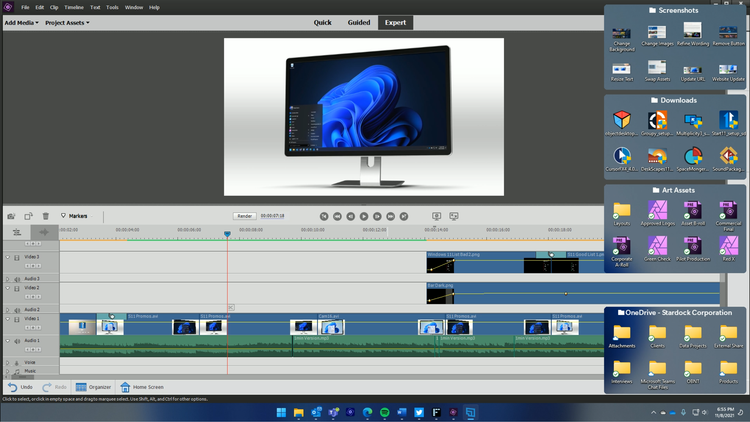
Keep your desktop effortlessly organized.Organize your PC by intelligently placing your desktop content into shaded areas called fences.
-
Customized to your workflow
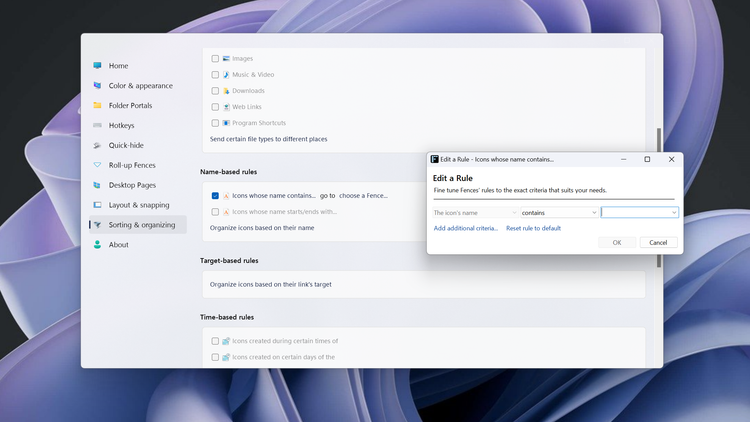
- Automatically have files sorted into fences on your desktop with our extensive automation rules or manually add your own files and folders.
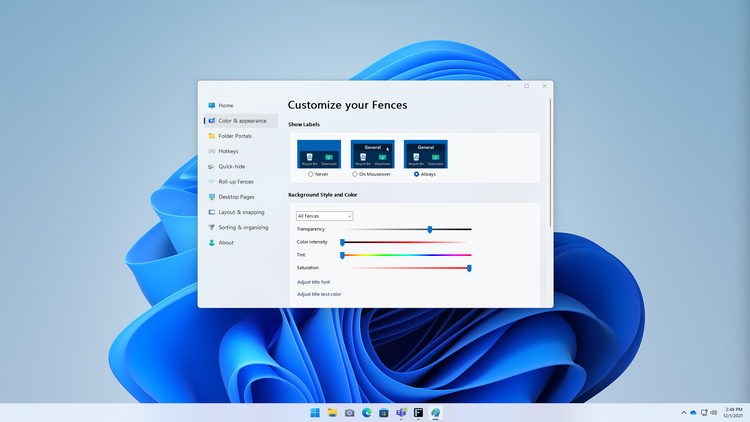
- Personalized to your preferences
- Easily change the size, colors, transparency, sorting, and more.
Enhance your productivity with unique features.
Powerful features like Peek and folder portals will enhance your productivity.
- Folder portals are essential
- Folder Portals allow you to mirror any folder to your desktop for quick access to your most important content.
- Your content is a Peek away
- Instantly access your files, folders, and applications with Peek by pressing Winkey + Space to bring your fences on top of all your windows.
Take complete control of your desktop.
Advanced Fences functionality makes it easy to quickly clean up your desktop.
- Desktop Quick-hide
- Double-click any blank space on your desktop and your icons will fade away.
-
Desktop Pages
Easily create multiple pages of fences and quickly swipe between them for even more organizational flexibility.
How Fences 4 is Used
Gaming
Steam, Epic, and more — every major publisher has its own platform and with some games even having multiple icons, your desktop can become a cluttered mess of gaming content. With Fences you can:
- Organize all of your games into a single fence for quick access.
- Keep all your game launchers in one location or roll-up the fence to keep them out of sight until needed.
- Put all of your engagement apps into a single fence and when using Peek, easily access crucial apps while streaming.
School
Keeping your schoolwork organized can be a challenge but Fences makes the process easy. And with customization controls built into Fences, you can make it effortless to separate your content by topic.
- Sort all of your schoolwork by class or topic so that you never misplace a document again.
- Add a splash of color to a fence to make it easier to organize fences by topic.
- Use quick-hide to create a distraction free desktop while working on a project.
Productivity
Keeping your desktop organized is at the heart of Fences. With the powerful built-in automation tools, you can create rules that will automatically organize your desktop by file type, name, time, and the target location.
- Create a fence that automatically puts all screenshots into a single folder on your desktop.
- Categorize icons into separate fences based on usage, such as research, assignments, or invoices.
- Use a folder portal with your favorite cloud storage service to create a fence that syncs content across all of your desktops.
Accessibility
Fences not only makes it easy to keep your desktop organized but it can also improve the accessibility of Windows. By using folder portals, you can bring content buried in File Explorer neatly to the desktop.
- Create a Folder portal to bring the downloads folder directly to the desktop.
- Change the size of icons and how they are displayed in a folder portal for easier viewing.
- Use colored fences for easier organization and navigation of content on the desktop.